Notepad++ comes with great features every programmer and developer can benefit from. It’s a free and open source code and text editor that comes with powerful features. Different languages are supported together with auto-completion, syntax highlighting and code folding. Another thing that makes Notepad++ is the plugin manager. You can add plugins that can help you extend the features of this powerful editor.
When you take the compare file plugin as an example, it allows users to sort out differences between two files and highlight the difference using colored text or some styling options that are available. In this post we’ll share how to compare files and text with Notepad++. If you have two files that are very similar and want to compare the minor difference between the two, you can do that with Notepad++.
Notepad++ compare files and text
The Basics – Understanding Plugin Admin Notepad++
If you want to compare Notepad++ files, you’ll need the Notepad++ compare plugin. This plugin will show you visually the difference between the two files. The plugin admin is where you get access to a lot of plugins that will help you extend the functionality of Notepad++. Before installing any plugin, you need to adjust some settings first, or I can say right from installation you need add some components to Notepad++.
When choosing components during installation you should select “Custom” from the list and the check the box “Plugins Admin”. This step will ensure plugin manager is installed during your installation.
Once the plugin admin is installed, you can do a lot of things, like adding new plugins, updating plugins and more stuffs. You can now install the “Compare Plugin” that allows you to compare files. Also it’s where you can view the list of all your installed Notepad++ plugins.
Installing Compare Plugin on Notepad++
- Open your Notepad++ and navigate to Plugins.
- Then you select Plugins Admin.
- The plugin manager will now open, you need to type “compare” in the search box.
- The compare plugin will show up, you need to select it by the check box next to it, once you click that, you should select “install” or if it’s already installed, you should update the plugin.
- Alternatively, you can download the plugin separately from third-party sites if you don’t want to download through the Notepad++ plugin dashboard.
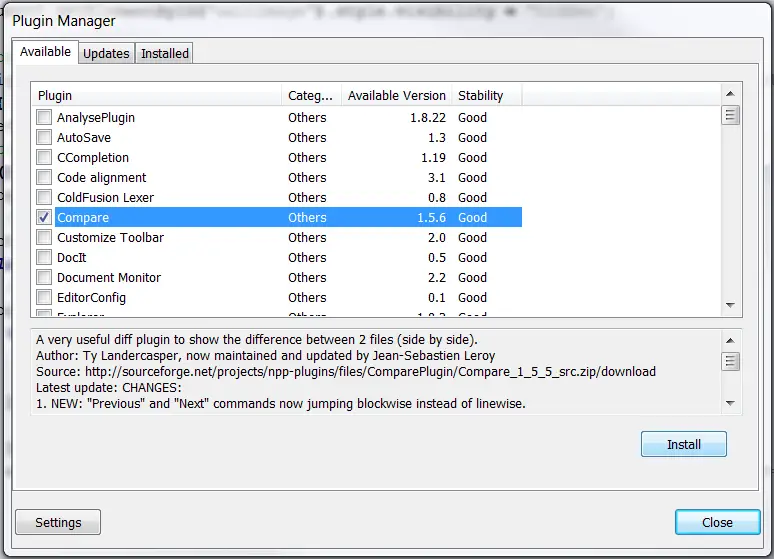
Plugin admin – Notepad++
How To Compare Two Files Using Notepad++ Compare Plugin
Before to start with the plugin check the article that explain how to silent install the Notepad++. The compare plugin is used to compare documents that are similar. That’s to say when you have old and new version of your work and want to compare them, or find the minor difference between the two. Here are the steps to do that:
- When Notepad++ is opened, go to plugins, compare menu and then compare
- You’ll have the option to upload the two files you want to compare or you can just copy and paste the two files in the text area provided.
- You can set the file to be first using the “set as first to compare” option. You can use the settings option to customize how you want the text and colors to be used when highlighting the differences found.
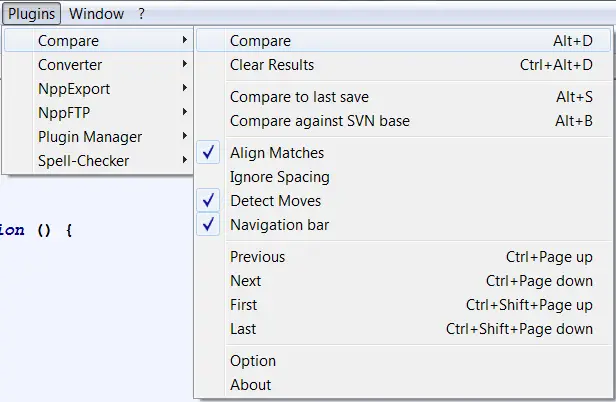
Plugin admin – Notepad++
Let’s explain briefly how some of the compare plugin features work.
Colors and Symbols
Colors and symbols are used to point out differences between the two documents. Here are the meanings of symbols used in the comparison:
- Positive sign (+) – the line with such symbol is only present in the new file and doesn’t exist in the other file, and lines with this symbol are highlighted in green color.
- Negative sign (-) – it denotes the line isn’t present in new file but available in the old file.
- Moved – the line is present in the other file once and it’s on a different location.
- Changed – the line is present in both files with some variations, and the changes will be highlighted with orange color.
One thing to note is that from the compare menu option, you shouldn’t unchecked “detect moves”, if you do so, the symbols will change.
The navigation bar
It’s useful when you’re comparing files with large text, so much that scrolling down is annoying. So in this case the navigation bar will act as a site map and bookmark browser.
Changing view mode
By default, you’ll be presented with double view mode, if you want you can change the view. You can choose to rotate from right to left, just click on the gripper and select “rotate to right” or “rotate to left”. This means you can always swap the files. But I suggest you restart Notepad++ after changing the view.
Menu settings
This option allows the user to modify file positions, first you’re given the option to compare between old and new file. The old file is positioned by the left or right view. While the ‘single view default compare to’ option lets you compare the active file using single view mode with your previous or the next file.
Encoding mismatch warning
If your files have different encoding, you’ll receive a warning when you’re trying to compare them.
These are some of the basic features available in Notepad++ compare plugin. You can explore more of the features when using the plugin.
The compare plugin can be helpful in other ways other than just comparing two files. Mostly it’s helpful to programmers and developers to find even the tiniest difference between two files. Other benefits of Notepad++ compare plugin include:
- For programmers working with a team they can easily view the changes made by other people.
- You can check code lines that have error hassle free, this will help you find the source of your problem fast.
- Differences are highlighted in colors in order notice the differences clearly.
- It can be used to compare files missing in a directory. This is helpful when you’re dealing with a large directory, it can be tiresome to go through the directory and then checking the folders and files manually. The compare tool can easily show you missing directory and files fast.
So far this is the basic info you need when it comes to comparing files in Notepad++. It’s the easiest tool anyone can use to compare and find differences between two files. Even if you have Microsoft Word files, you should copy and paste the text in Notepad++ and make your comparison. Thank you for reading and don’t forget to share your thoughts in the comments.
)
)